
Summary
This guide explains how to add a Direct Debit payment method to a customer’s account. This can be helpful in cases where a customer has an active membership but no current payment method on file. For instance, if a customer accidentally cancelled their Direct Debit but wants to continue their membership, new payment details can be added to keep their membership active.
Note: The user will need the relevant role permission within the finance module.
Step-by-Step Guide
1. Search for the Customer.
2. Update Payment Information
- Go to the Billing tab on the customer’s profile.
-
Add new mandate/Update existing Billing details
- If there is no existing mandate, click on Add Direct Debit Instructions and enter the customer’s bank details.
- If there is already a mandate but you wish to update the billing details, click on 'Update '.
- If there is no existing mandate, click on Add Direct Debit Instructions and enter the customer’s bank details.
3. Confirm Authorisations
- Tick the box to confirm that the customer has acknowledged they are the account holder and have authorised Direct Debit payments from this account.
- Tick the box confirming that you, as a staff member, have taken reasonable steps to ensure the customer understands and agrees to the Direct Debit Guarantee.
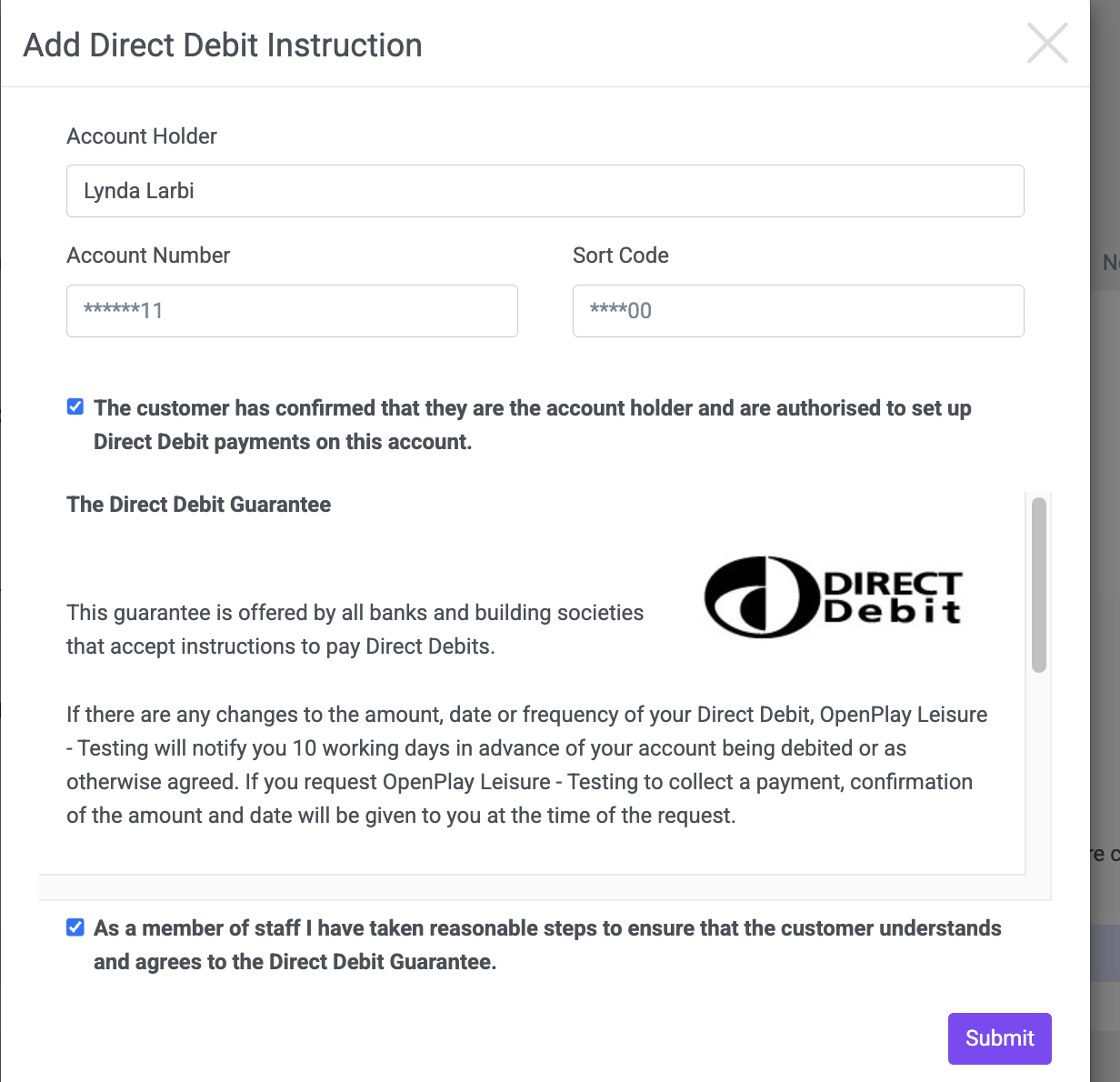
4. Save the Direct Debit Setup
- Click Submit to save the Direct Debit payment method to the customer’s account.
The Direct Debit payment method is now successfully added, allowing the customer’s membership payments to continue seamlessly.